Pin Out
Connector reference for Studica Robotics Control Panel V2.
note
The E-Stop and Power Switch ship pre-wired.
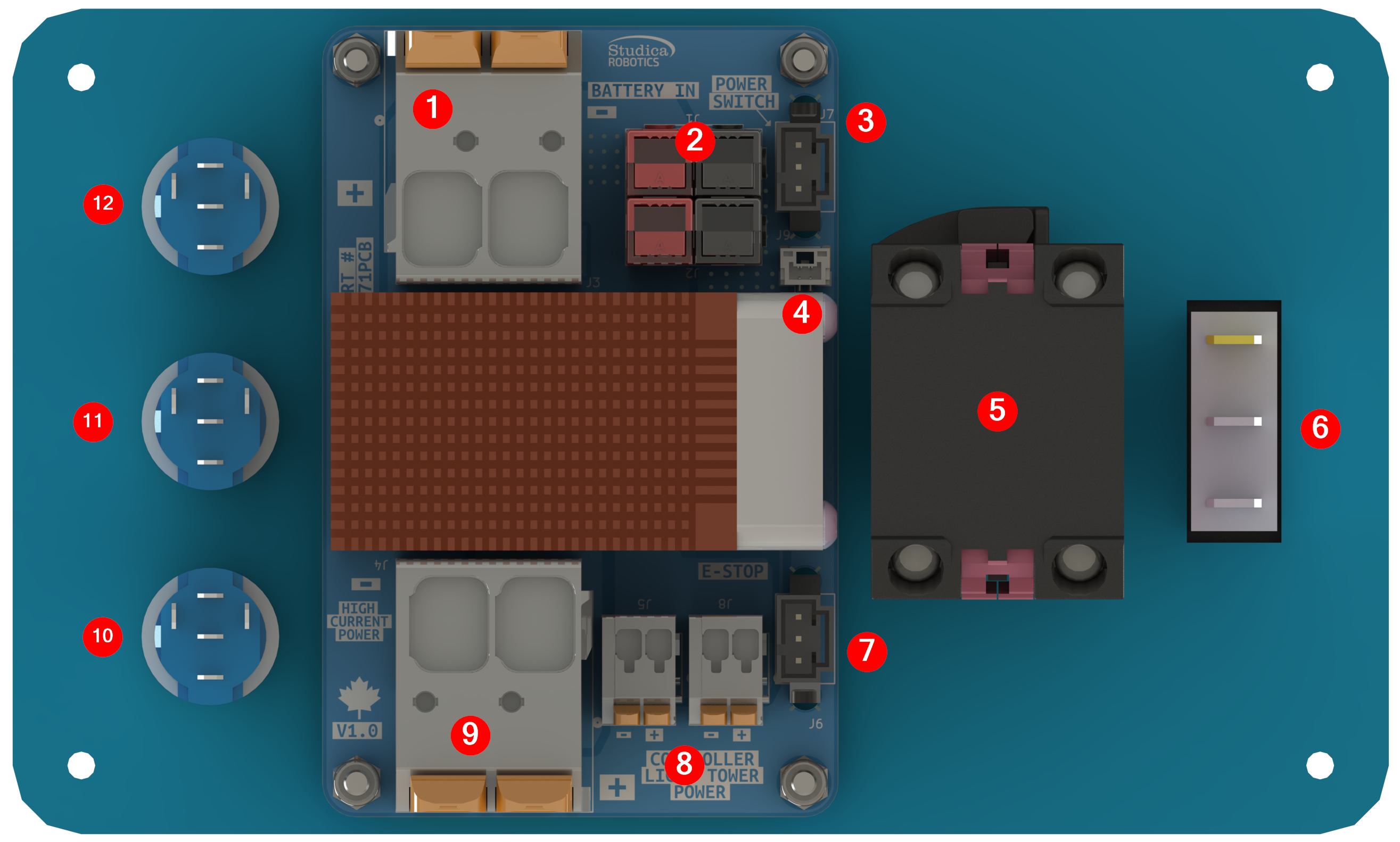
Control Panel connector locations and callouts. See the table below for what each numbered callout does.
| Callout | Name | What it’s for | Notes |
|---|---|---|---|
| 1 | High Current Power Input | Primary High Current Power Input | Use either of the power inputs; all are tied in parallel. Connector can support up to 60A. |
| 2 | Secondary Power Input | Lower Current Power Input | Use either of the power inputs; all are tied in parallel. Connector can support up to 45A. |
| 3 | Power Switch Input | Power switch cables route here to turn the panel on and off | This is the main power switch for the entire robot. |
| 4 | Cooling Fan | Keeps the heatsink cool | Fan is 12V, if using 24V a fan replacement is required. |
| 5 | E-Stop | Controls power to the high current output | Hitting the E-Stop will only turn off power to the high current output. Controller and Light Tower power will remain. |
| 6 | Power Switch | Power switch for the entire robot | Power no longer flows through the switch and instead the switch is used as a gate control. |
| 7 | E-Stop Input | Where the E-Stop wires route to | E-Stop port for the wires coming from the E-Stop. |
| 8 | Controller and Light Tower Output Power | Output power to the Light Tower and Controller | This power stays on when E-Stop is pushed. Only way to turn off is with main power switch. |
| 9 | High Current Power Output | Primary High Current Power Output | Provides output power to the rest of the robot. Suggested to be wired direct to the High Current Power Distribution Board. |
| 10 | Stop Button | A button that can be used by the user | Provides a Red LED and NO / NC Momentary interface. |
| 11 | Reset Button | A button that can be used by the user | Provides a Yellow LED and NO / NC Momentary interface. |
| 12 | Start Button | A button that can be used by the user | Provides a Green LED and NO / NC Momentary interface. |