Networking on Altair
Out of the box, Altair broadcasts a Wi-Fi network with SSID Drone-1234 and uses the password password.
The Altair supports four communication methods.
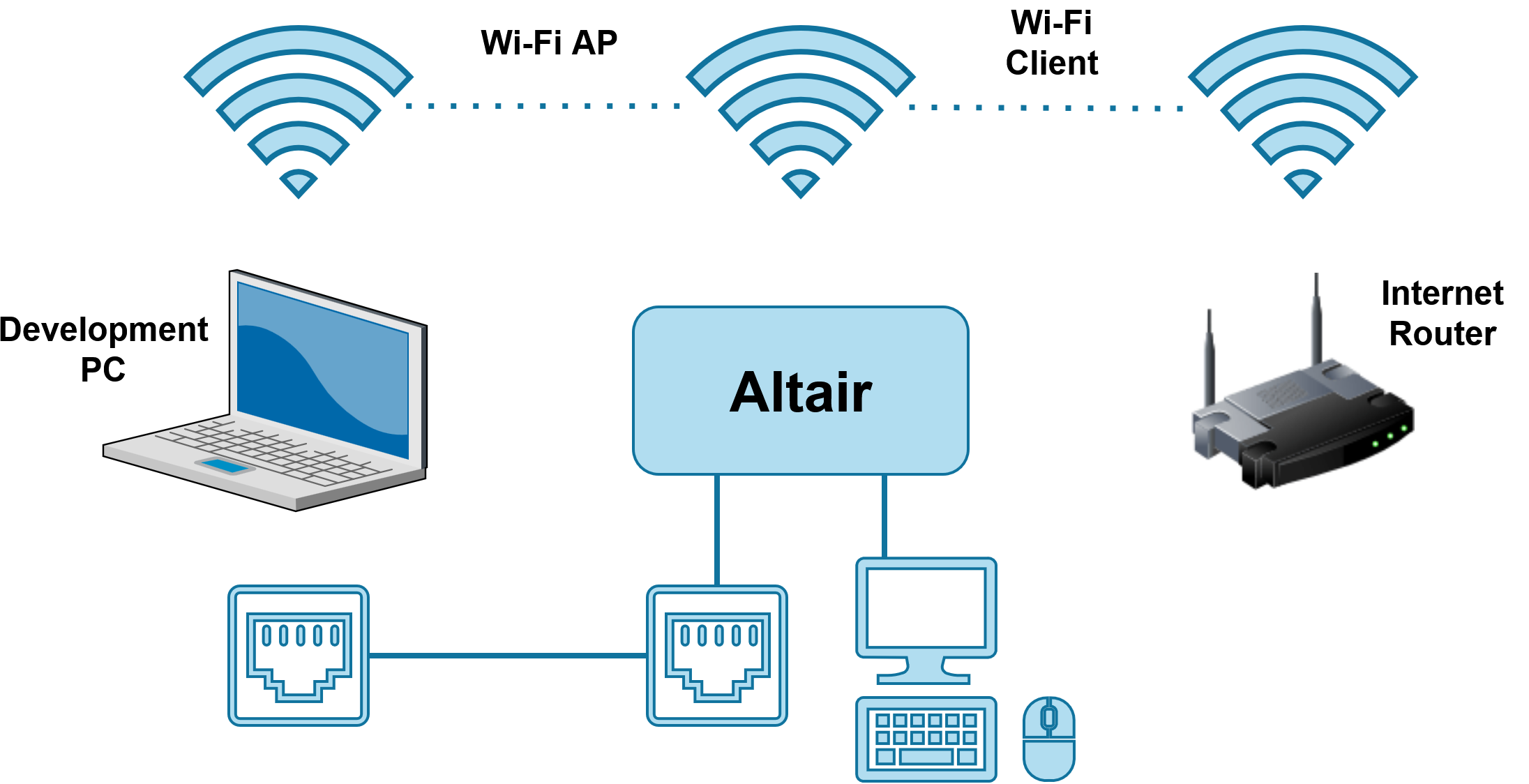
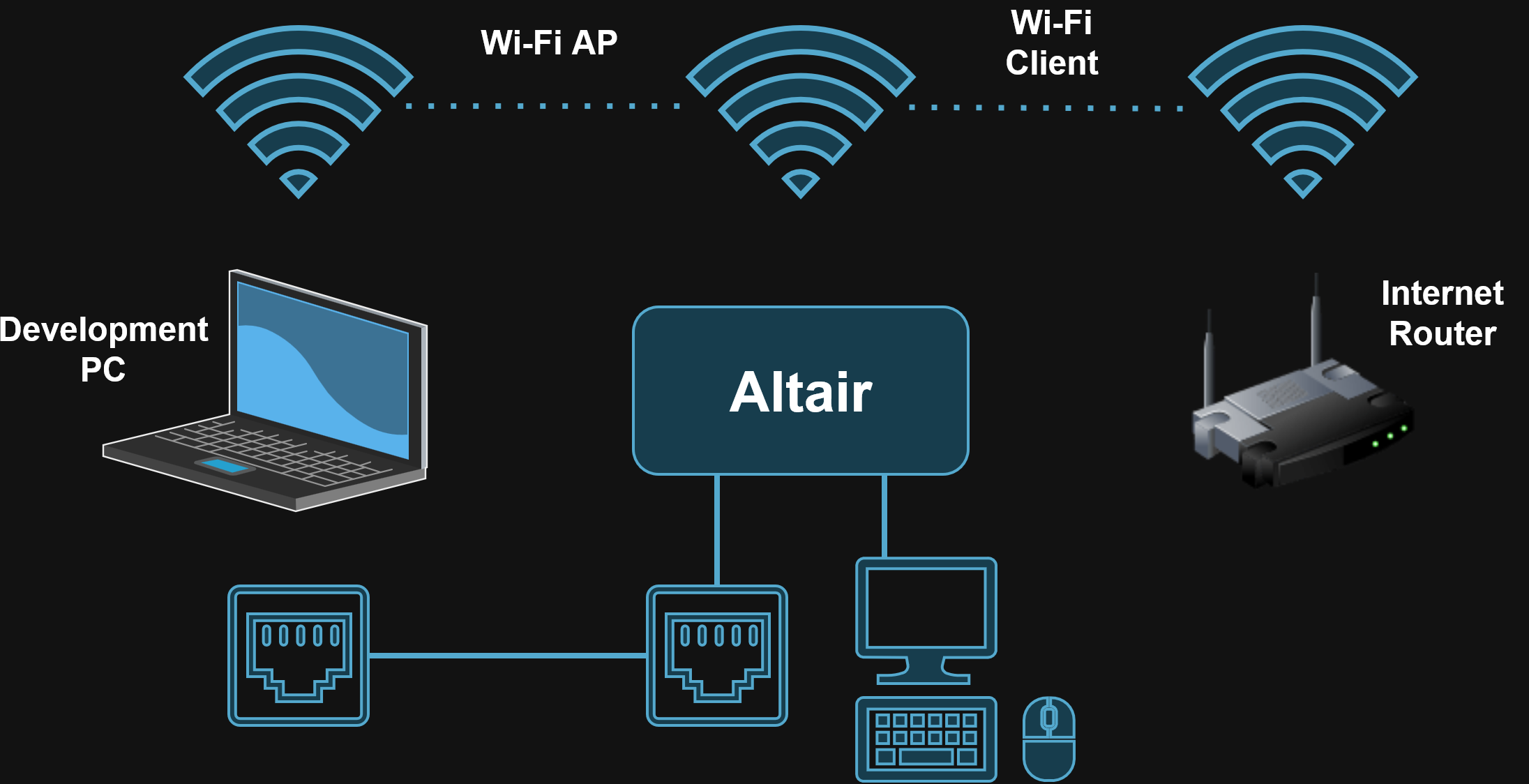
- Wi-Fi Access Point (AP)
- Wi-Fi Client (Normal Internet Connection)
- Ethernet (Preferred)
- Direct Desktop Connection
Keep Altair in Wi-Fi AP mode for normal use. Use Ethernet as the preferred connection method.
Wi-Fi Access Point (AP)
In Wi-Fi AP mode, Altair creates its own Wi-Fi network. Connect a computer directly to that network.
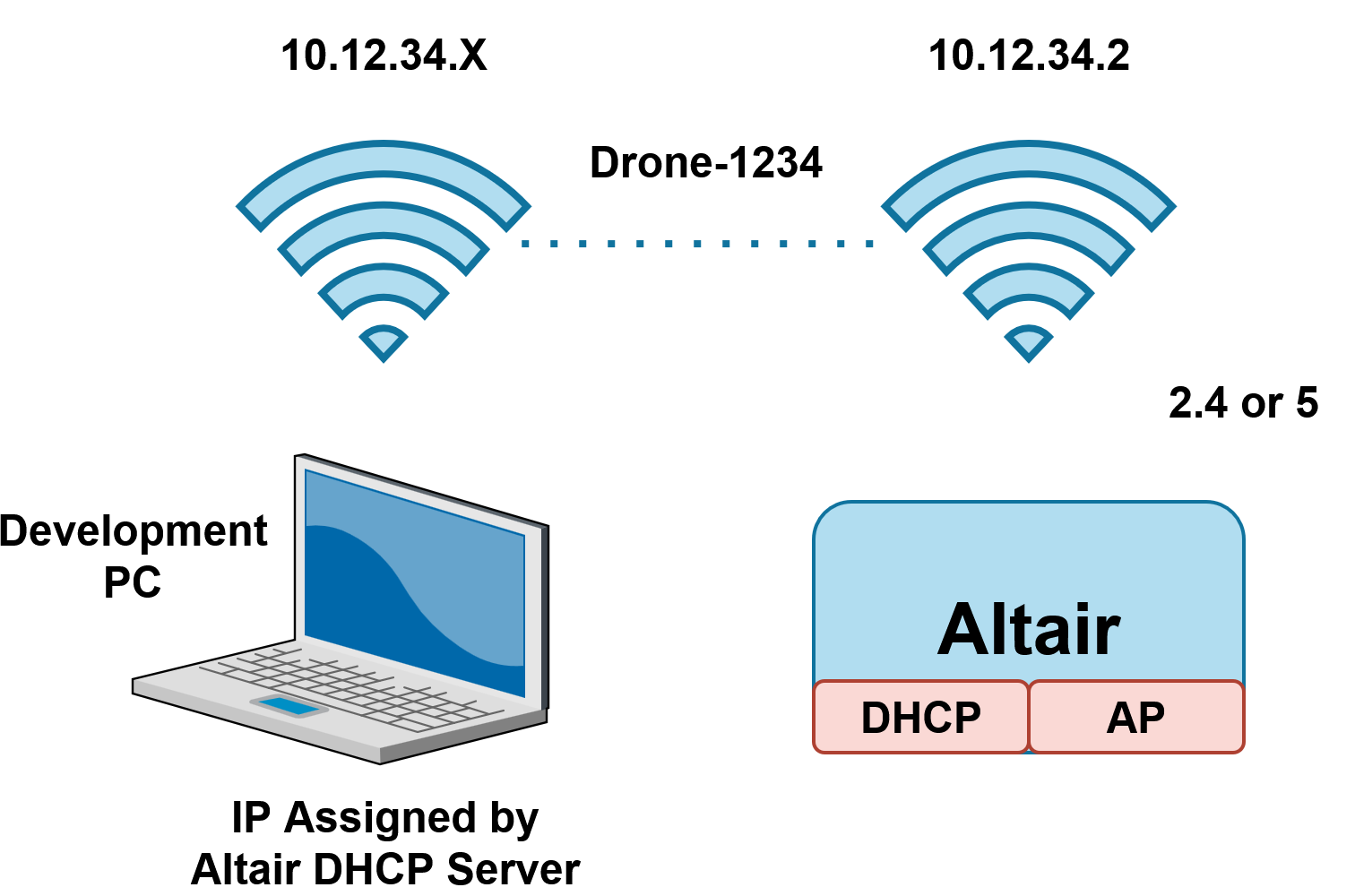
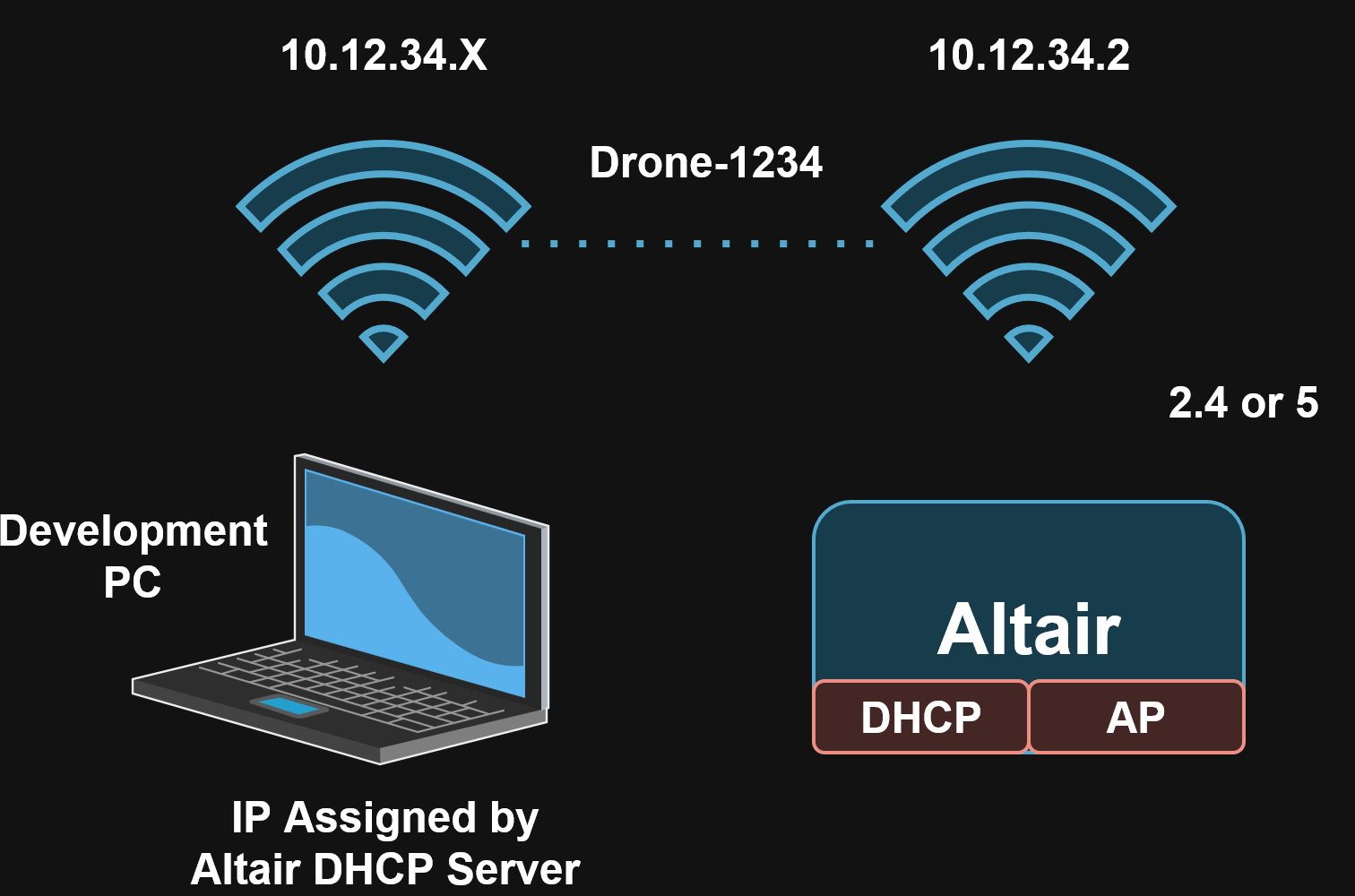
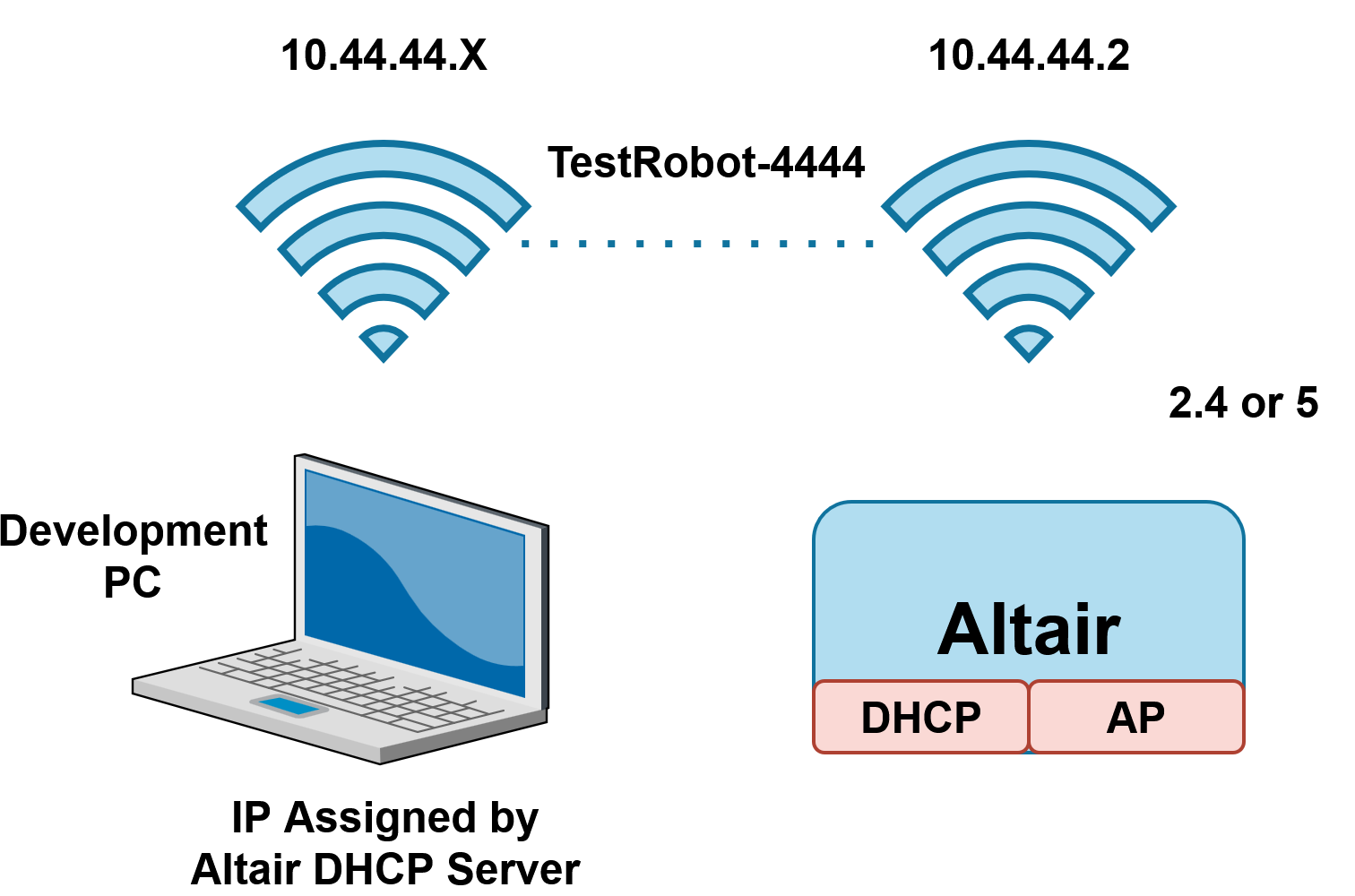
In Wi-Fi AP mode, Altair uses 10.XX.YY.2. Replace XX.YY with the four-digit team number. The default image uses team number 1234, which yields 10.12.34.2.
A built-in script manages the Wi-Fi AP SSID, team number, and password.
sudo setupHotspot SSID TEAMNUMBER BAND PASSWORD
Where:
- SSID defines the Wi-Fi name prefix. The default uses
VMX(theVMXinVMX-1234). - TEAMNUMBER defines the Wi-Fi name suffix. The default uses
1234(the1234inVMX-1234). - BAND defines the Wi-Fi band to use.
2.4or5. - PASSWORD optionally sets the Wi-Fi password.
After running the command above, the script prompts for a channel number based on the selected BAND. For 2.4 networks, valid channels range from 1 to 11. For 5 networks, valid channels vary by country due to strict compliance requirements. The script automatically shows the valid channels for your country.
For 2.4 networks, use channels 1, 6, or 11 because those channels do not overlap.
5 networks require a country code. Run the command below to define it. This example uses CA for Canada.
sudo iw reg set CA
The default image configures Wi-Fi as Drone-1234 with password password on the 2.4 band and channel 1. Run the setup script like this:
sudo setupHotspot Drone 1234 2.4 password
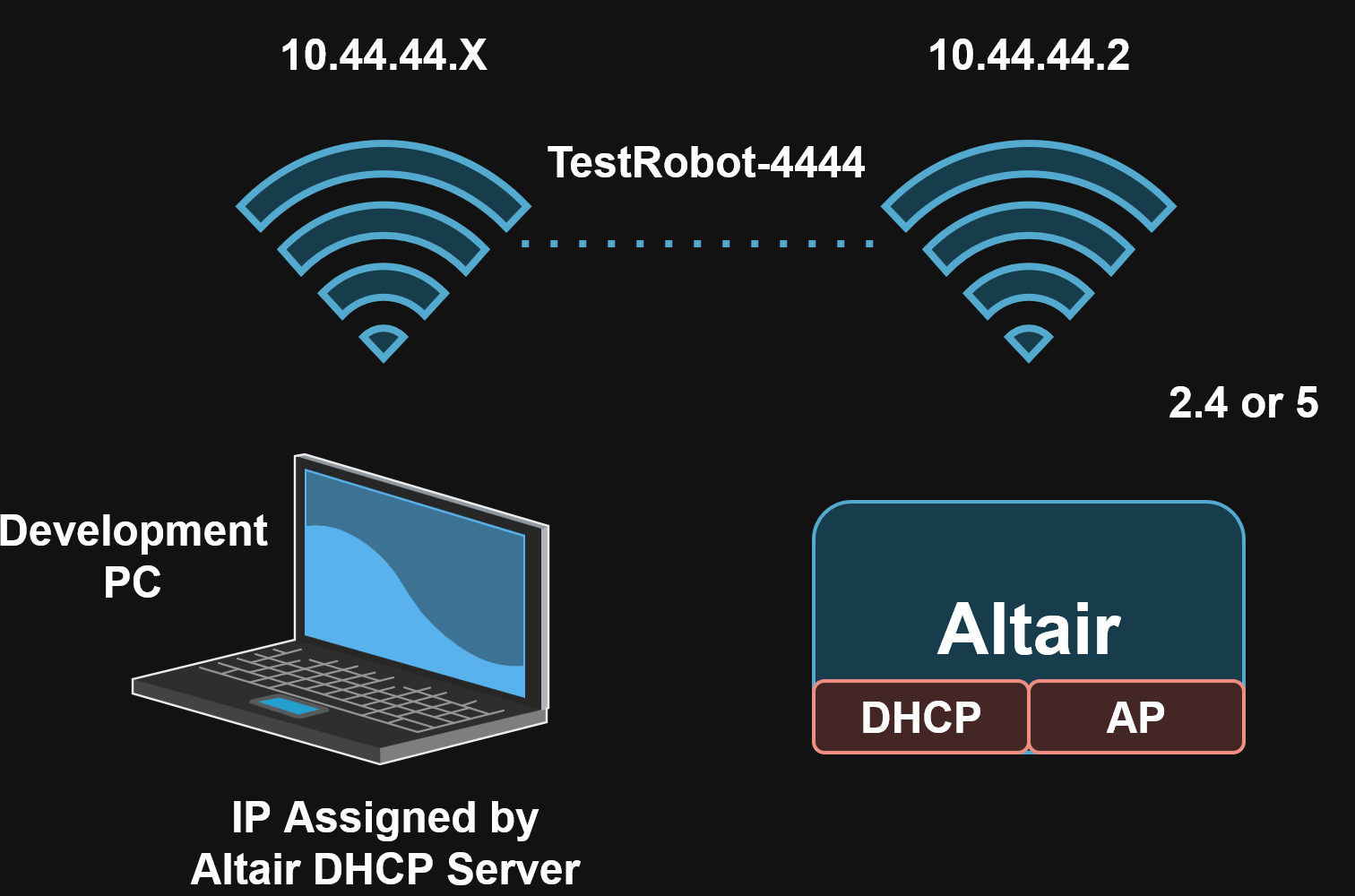
To change the Wi-Fi name to TestRobot-4444 with password Checkers, run:
sudo setupHotspot TestRobot 4444 2.4 Checkers
After running the command, the network will now look like this:
When switching from Client mode to AP mode, keep the existing SSID, team number, and password. Run the toggleNetMode script.
toggleNetMode ap
Ethernet
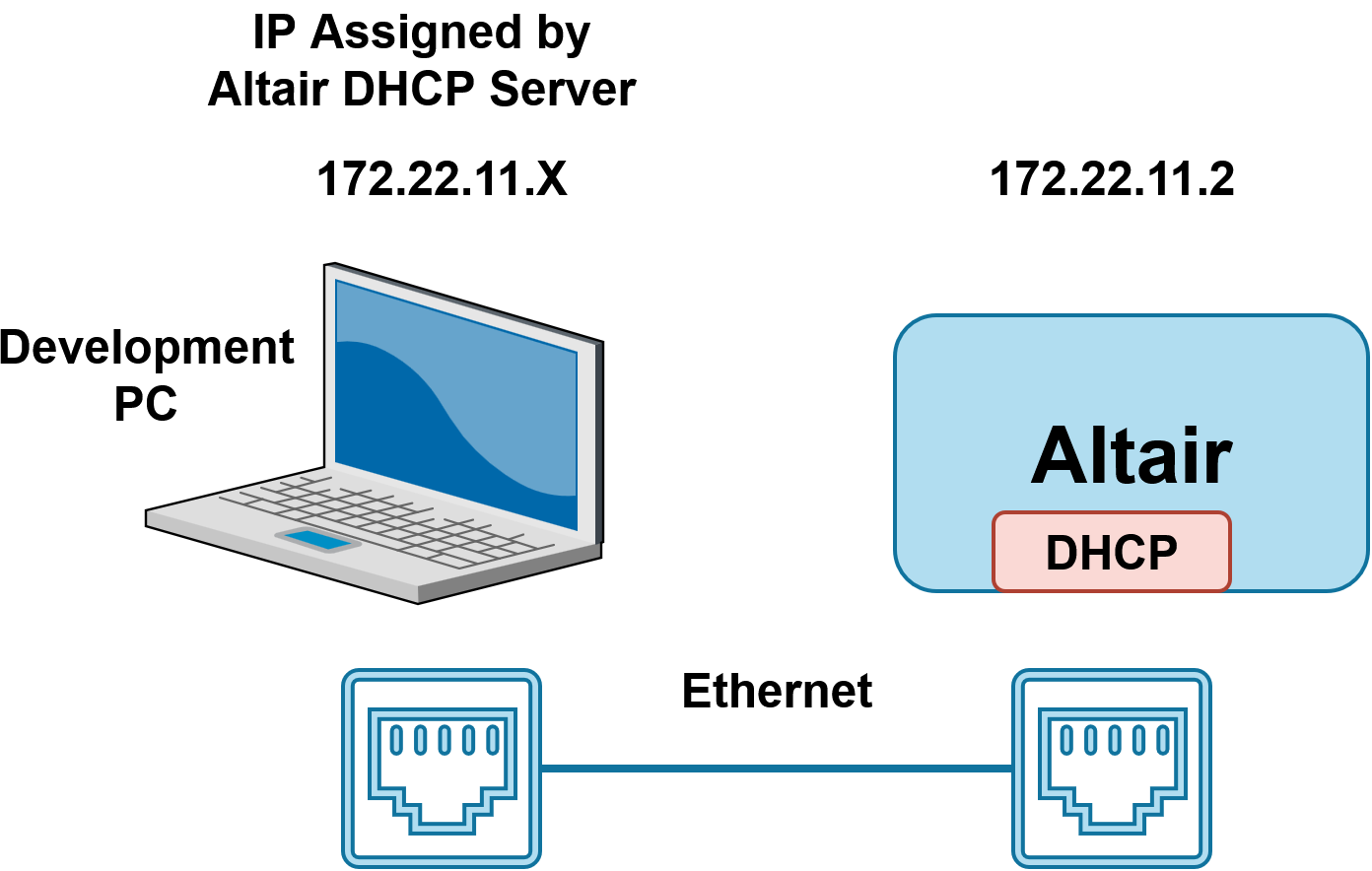
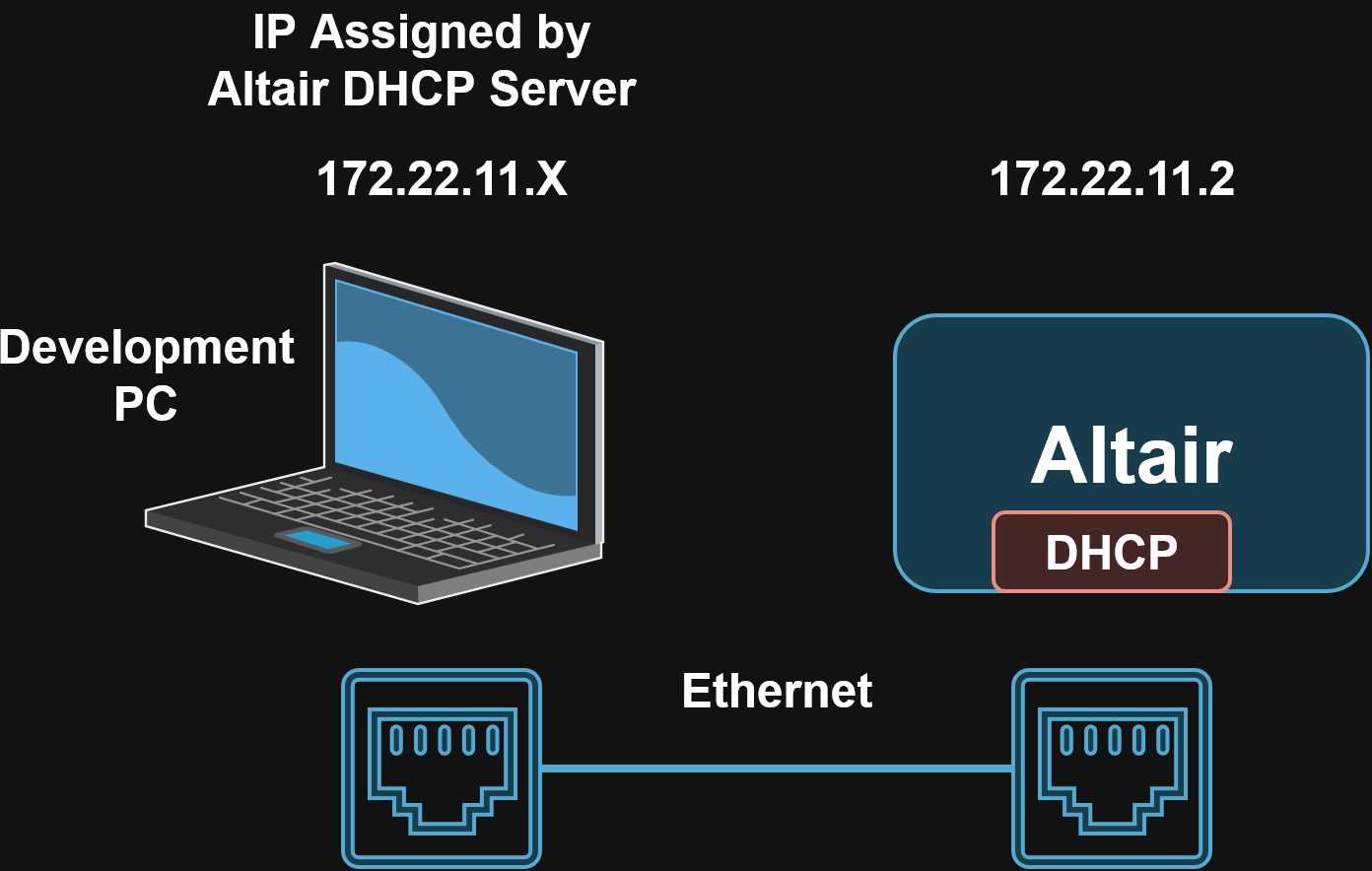
Ethernet remains active at all times and uses a fixed configuration. Use Ethernet whenever possible, except when a run requires wireless operation.
The Altair Ethernet port uses 172.22.11.2.
Wi-Fi Client
Wi-Fi Client mode disables the Wi-Fi AP and connects Altair to a Wi-Fi router. Use this mode only for updates or package downloads.
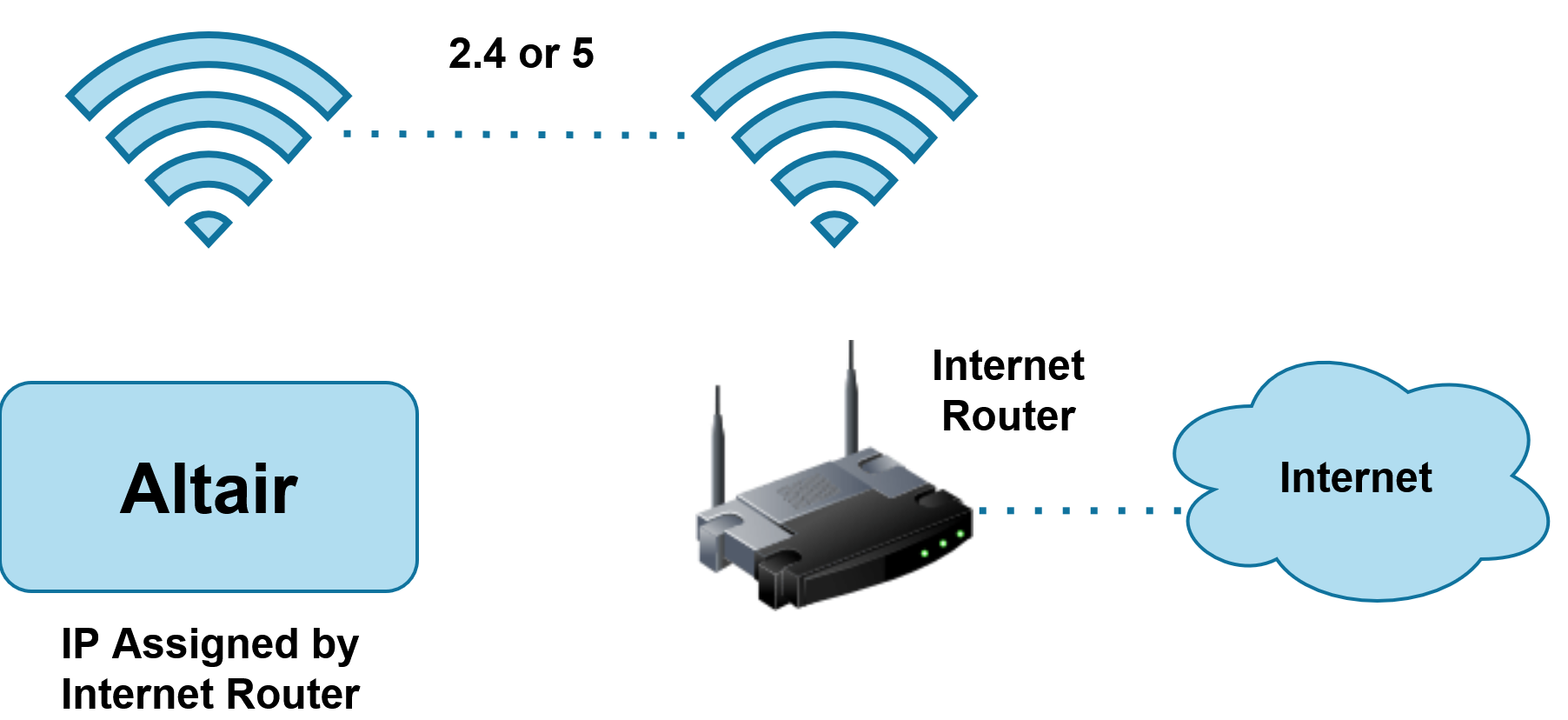
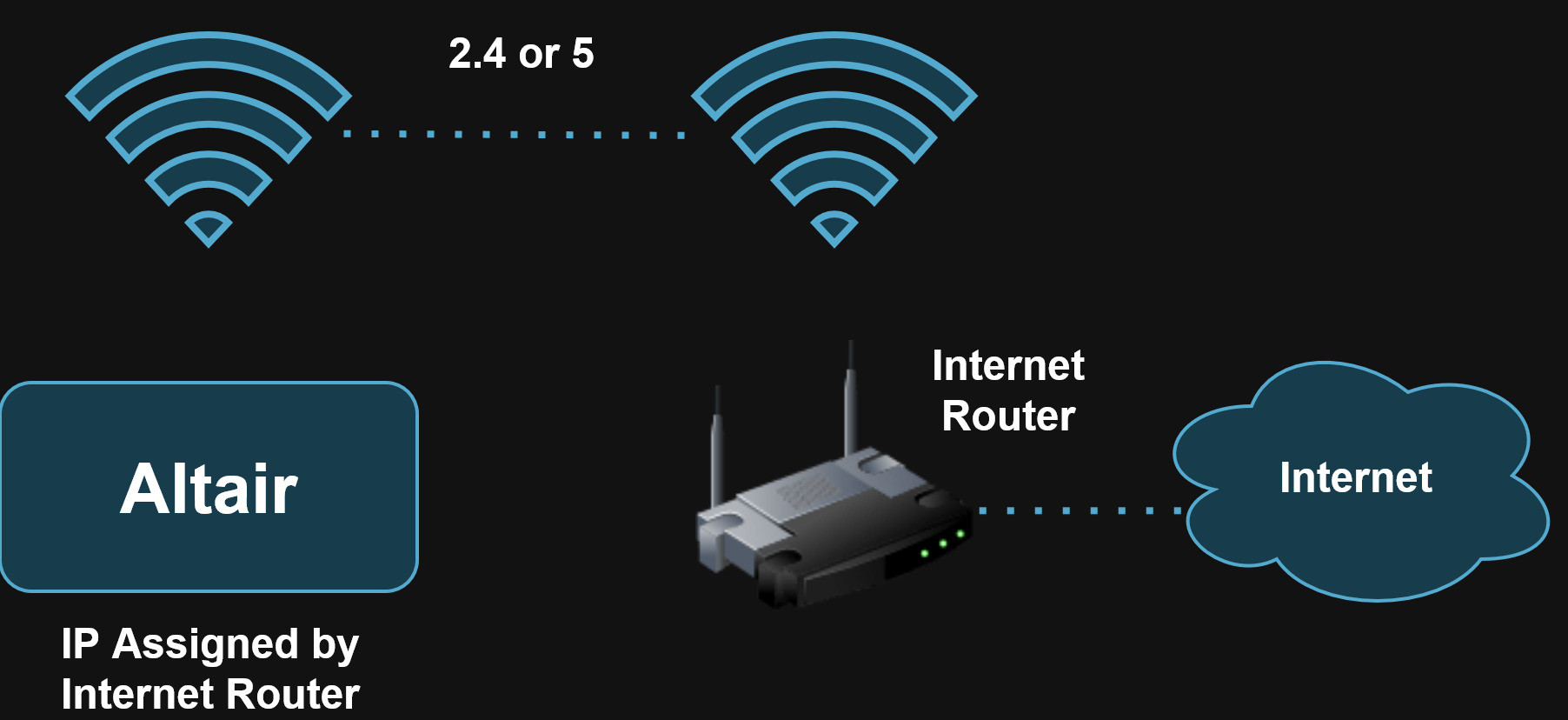
Run the following command in the terminal to put Altair into Wi-Fi Client mode.
toggleNetMode wifi
Connect to Altair over Ethernet, remote in, switch to Client mode, complete the required task, then switch back to AP mode using the commands above.